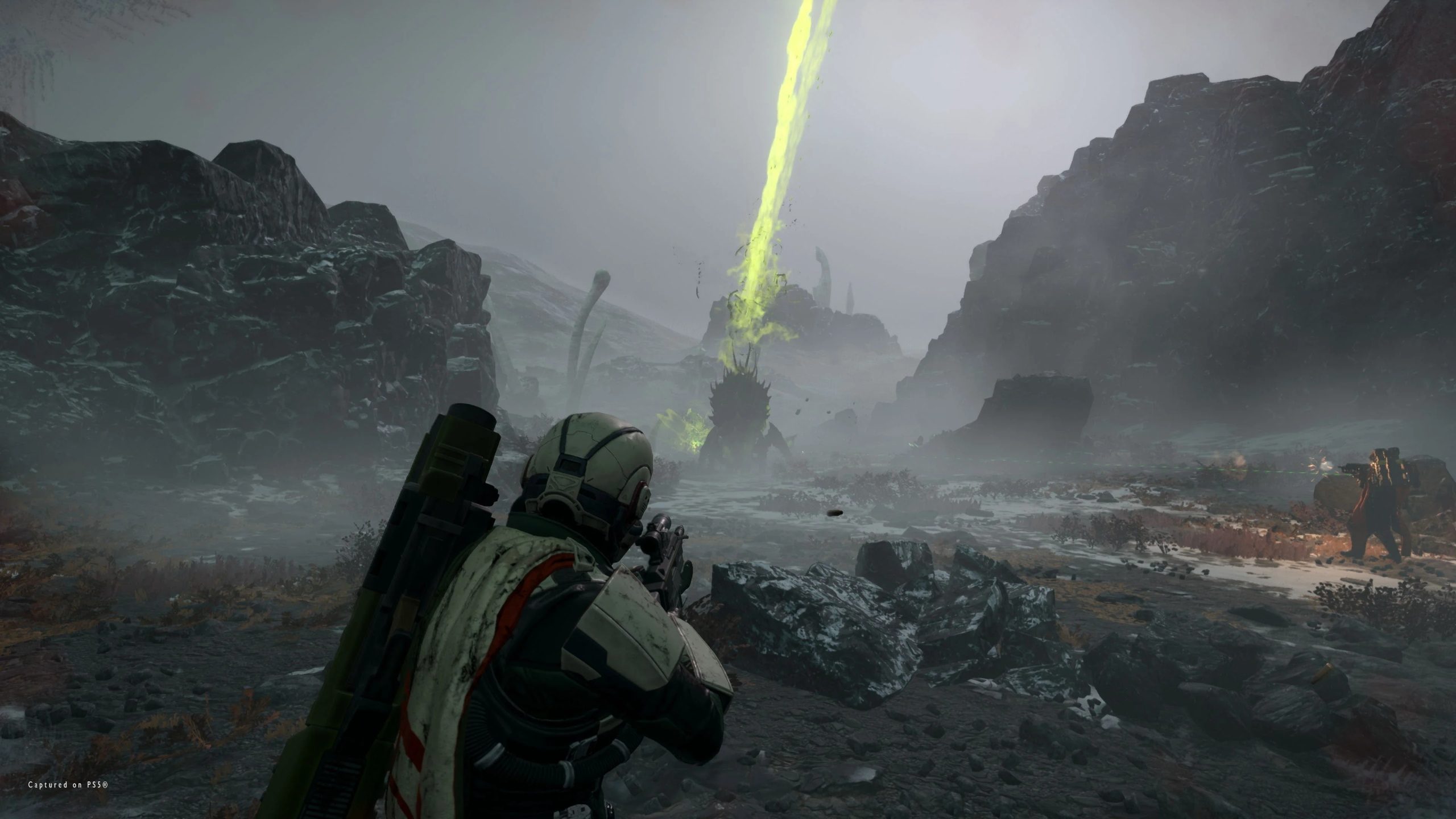
If you’ve been diving into Helldivers 2 lately, you’ve probably seen how chaotic and fun it can get—until your game suddenly crashes to desktop mid-mission. It’s one of those frustrating moments where you go from heroic galactic liberator to staring at your Windows taskbar in disbelief. The good news? You’re not alone, and there are a few simple fixes that can help get you back into the fight quickly.
Below are three easy and effective solutions that can resolve most Helldivers 2 crashing issues on Windows, based on what’s worked for players across the community (myself included).
1. Update or Reinstall Your Graphics Drivers
This might sound basic, but outdated or corrupted graphics drivers are the most common cause of Helldivers 2 crashes on PC. The game pushes your GPU pretty hard—especially in chaotic battles filled with explosions and particle effects—so keeping your drivers up to date is essential.
Here’s what to do:
- Go to your GPU manufacturer’s website (NVIDIA, AMD, or Intel).
- Download the latest driver package for your graphics card.
- Perform a clean installation to ensure any leftover corrupted files are removed.
If you’re using an NVIDIA card, you can also use GeForce Experience to auto-update. AMD users can rely on Radeon Software for the same purpose.
Once your drivers are updated, restart your PC and try launching the game again. You’d be surprised how often this single step fixes random crashes or performance drops.
As a quick tip—players who focus on optimizing their builds and loadouts might also notice fewer frame stutters once their drivers are fresh. Some even recommend running a few offline missions after updating to re-cache shaders and smooth things out.
2. Verify and Repair Game Files
Sometimes, your installation files can get corrupted during updates or downloads, especially after a major patch. If your game keeps crashing at launch or during missions, it’s worth checking the integrity of your game files.
If you’re using Steam:
- Open your Steam Library.
- Right-click Helldivers 2 and select Properties.
- Go to the Installed Files tab.
- Click Verify Integrity of Game Files.
Steam will automatically scan your installation and replace any missing or damaged files. The process can take several minutes depending on your storage speed, but it’s a safe and effective fix.
For those who enjoy collecting gear or upgrading their Stratagems between missions, keeping your game files stable also helps prevent progression errors or item sync issues. Some players even take this step before big events or after installing mods.
If you’ve recently tried to buy Helldivers 2 medals or completed in-game purchases and noticed crashes afterward, verifying your files can also ensure the new data is properly synced. This isn’t a guaranteed fix for every transaction-related issue, but it helps rule out corrupted content as a cause.
3. Adjust In-Game and Windows Settings
If you’ve tried the first two steps and Helldivers 2 still crashes randomly, your next move should be to tweak a few system and in-game settings. Sometimes the game’s default graphics or background processes can overload your system, especially on mid-range PCs.
Try these changes:
- Lower your graphics settings, especially shadows, anti-aliasing, and resolution scaling.
- Disable overlays like Discord, Steam, or NVIDIA GeForce Experience—they can conflict with the game.
- Run the game as Administrator to give it proper access to system resources.
- Disable fullscreen optimizations in the game’s .exe file properties (found in the installation folder).
Some players have also reported that setting the game’s power profile to High Performance in Windows can help reduce random shutdowns.
Once you’ve made these adjustments, restart your PC and launch the game again. Even if your system is strong, dialing back a few visual settings can drastically improve stability during longer sessions.
And if you’re one of those players who likes to customize everything—from your character’s armor to your Stratagem loadout—you probably know how important a stable game is when farming resources or hunting for rare items. When you’re focusing on efficient farming, it’s best to avoid unnecessary crashes that interrupt your flow.
If you’re looking for ways to expand your gear or resources between sessions, it’s often helpful to explore the best site to buy Helldivers 2 items safely—especially if you want to save time instead of grinding. Just make sure you stick to trusted communities or verified platforms like U4GM, which many players in the community mention for its reliability.
Bonus Tip: Keep an Eye on Future Patches
Arrowhead Studios has been pretty quick about releasing patches for Helldivers 2, especially to fix stability and matchmaking issues. If the crashes persist, check the official patch notes or forums to see if there’s an update addressing your problem.
Also, join community discussions on Reddit or Discord—sometimes temporary fixes or workarounds are shared before the developers officially patch the bug. It’s a great way to stay in the loop, especially when you’re dealing with new content drops or limited-time events.
Helldivers 2 is easily one of the most intense co-op shooters out there, but like many new games, it still has a few rough edges. Most crash problems can be fixed with updated drivers, verified files, and small tweaks to your settings.
Once your game is stable, you can jump back into the chaos of liberating planets, calling in airstrikes, and saving the galaxy with your squad—without worrying about sudden crashes cutting the action short.
Remember: a smooth run doesn’t just depend on skill, but also on a healthy system setup. With these fixes in place, you’ll spend less time troubleshooting and more time spreading managed democracy—Helldivers-style.